

PraiseTune is the app worship teams and church musicians use to manage lyrics, chords, collections and setlists in one place. A collection in PraiseTune is more than a simple folder: it’s how you organize a songbook, a seasonal repertoire, or the sheet music for a single instrument. The problem was that, as long as a collection could only be created from scratch, every reorganization meant manual work: rebuilding the structure, re-searching for songs one by one, redeciding who has access.
With PraiseTune 1.1 a collection can now be duplicated, moved to another team, or shared without moving it: three different actions for three different problems, which we’ll go through one at a time.
Why these features exist
A few real cases that motivated them:
- Every year you reuse the same songbook for a recurring event (a summer camp, a worship night), but you want to start from a copy without risking changes to the original that’s also used at other times.
- A collection ended up “by accident” inside the right team, but in the wrong place, and needs to be moved into another collection or another team, without recreating it.
- A worship group needs to read another group’s repertoire (maybe from the same church) without that group losing ownership: the answer is to share it, not move it.
- You just searched for or played through a set of songs (a setlist, a search result) and want to turn them into something permanent right away, without adding them one by one to a new collection.
Duplicating a collection
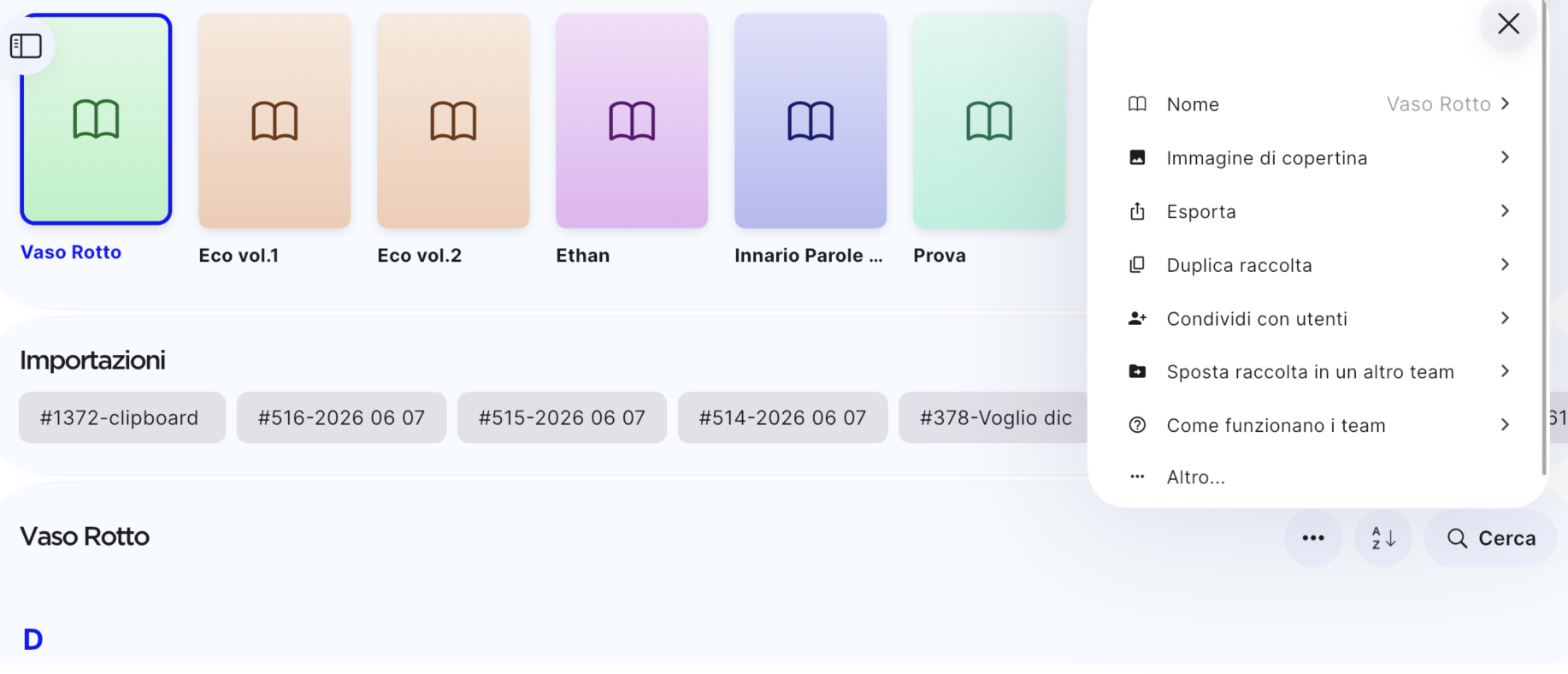
From the ”…” menu on a collection or a team, select “Duplicate collection”.
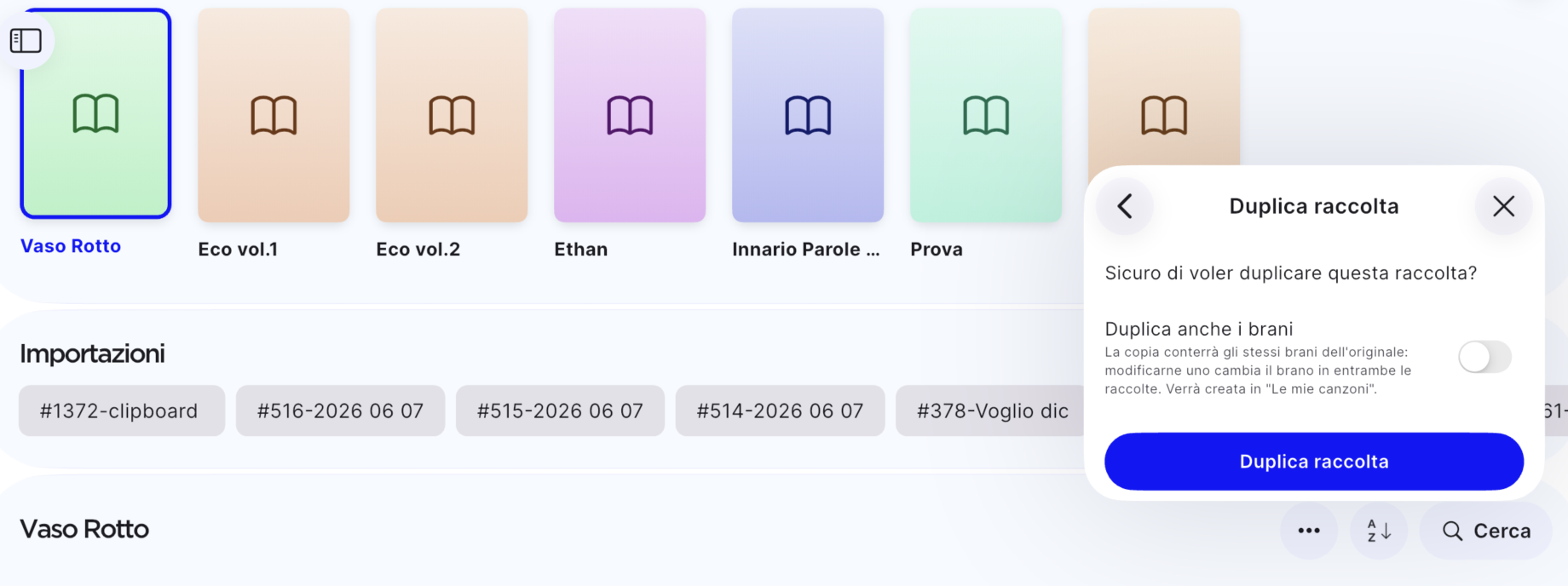
You’re asked whether you also want to duplicate the songs:
- Off (the long-standing behavior): the copy contains the same songs as the original. Editing a song changes it in both collections, because it’s the same song seen from two places.
- On: an independent copy of every song is created, owned by you. Edits no longer touch the originals. If the source collection is inside a team, the copies don’t stay in the team: they end up yours, inside “My Songs.”
Some songs might not be duplicable (because you don’t have permission to copy them): PraiseTune tells you before going ahead, showing how many songs out of the total will actually be copied. There’s no practical limit for everyday use, but for safety PraiseTune caps it at 1000 songs per operation.
If you turn on song duplication, you can also choose to automatically edit the “version” field on the copies (for example adding “COPY” as a prefix or suffix), leaving the name and artist unchanged, so the copies stay easy to search for and tell apart from the originals.
Moving a collection to another team
Still from a collection’s ”…” menu, the “Move” option lets you pick a destination team. The collection leaves the place it’s in and moves entirely to the new team: it’s a transfer, not a copy.
Use it when a collection ended up in the wrong place, or when you’re reorganizing the structure across several teams you manage (say, a church and a separate band).
Sharing a collection with another team, without moving it
If instead you want another team to see a collection without taking it away from the original team, use “Share with a team”. The collection stays where it is, but also becomes visible to the team you chose.
You can also decide whether to share just the collection as a container, or the songs inside it too:
- On: the collection’s songs become visible to every member of the destination team (only for the songs you’re an admin of; the setting doesn’t change for the rest).
- Off: the destination team can see that the collection exists, but not its content.
Creating a collection from a search or a setlist
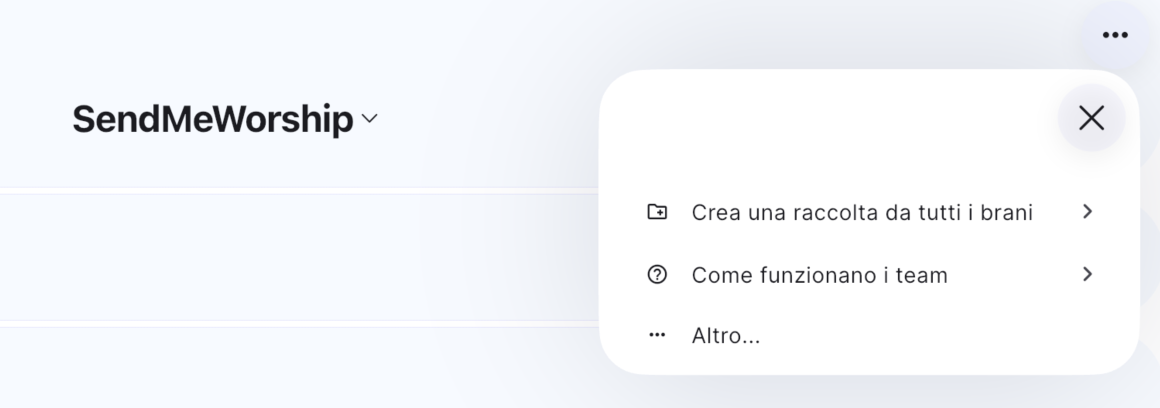
Any time you have a list of songs in front of you, a search result, a setlist you’ve already played, you can pick “Create a collection from all these songs” instead of adding them one by one by hand. You’re asked where to save it (the current team or another one), and PraiseTune creates a new collection with every song from that list already inside.
It’s the same mechanism already used to create collections from a PDF extraction (we cover that in how to convert a PDF to ChordPro), now also available from search and setlists.
Who’s in charge of a team
This update also makes it clearer who controls a team and what happens when that person changes.
Leaving a team. You can leave a team you’re part of at any time: you lose access to its songs, its collections and its setlists. If you’re the creator, management passes automatically to another admin. You can’t leave a team if you’re its only member (in that case you can only delete it) or if the subscription is still under your name: it needs to be canceled or transferred first.
Removing the creator. A team’s or a song’s creator always has every permission, by design. If ownership needs to be transferred (say, whoever originally created the team is no longer part of the group), you can remove them from the creator role: their permissions pass to you. The only block is if the team’s subscription is still under their name: that needs to be sorted out first.
Frequently asked questions
Does duplicating a collection also duplicate its sub-collections? Duplication covers the songs in the collection you chose. If you also need to duplicate a structure of sub-collections, repeat the operation on each one.
Do the copies of duplicated songs stay linked to the originals? No, if you turn on “duplicate the songs too”: they become fully independent copies, owned by you. If you leave that option off, instead, they remain the same song seen from two collections.
Can I move a collection without moving the songs it contains? Moving affects the collection as a whole: the songs stay inside it. If you want to leave the songs where they are and bring only a copy elsewhere, that’s a case for duplicating the collection instead of moving it.
What happens if I leave a team I’m the only member of? You can’t: in that case the only option is to delete the team.
Is there a limit to how many songs I can duplicate along with a collection? Yes, the ceiling per single operation is 1000 songs: comfortably more than any real repertoire will need.
If instead you need to manage several songs at once, not a whole collection, also see duplicate and delete multiple songs on PraiseTune. For the rest of what’s new in this version, see PraiseTune 1.1: duplicate collections and songs, new menu, faster search.
Download PraiseTune for free on App Store and Google Play and reorganize your repertoire without rebuilding anything from scratch.